
How Can We Help?
Documents Help
Purpose
Studio Documents is a simple word processor for creating, editing and saving formatted documents. It supports multiple file formats including RTF, TXT, DOCX and PDF.
How to Access
- From the Main Menu, use the Up/Down arrows to find Documents.
- Press Enter to open Documents.
Navigation & Controls
- Up/Down Arrows: Move through menu items or document content.
- Enter: Select an option or activate a button.
- Escape: Open the Documents Menu or return to the previous screen.
Keyboard Shortcuts
- Text Options: Ctrl + D
- Find word: Ctrl + F
- Print document: Ctrl + P
- Advanced Print Document: Ctrl + Shift + P
- Save Document: Ctrl + S
- Save As Document: Ctrl + Shift + S
- Decrease text size: Ctrl + Shift + <
- Increase text size: Ctrl + Shift + >
Using Documents
Documents Menu
When you first open Documents, you'll see:
- Create New Document: Start a new blank document.
- Open a Document: Open an existing document from your files.
- Go Back: Return to the Main Menu.
Create and Save a Document
- From the Documents menu, use the Up/Down arrows to find Create New Document.
- Press Enter to create a new blank document.
- Type your content in the Document Editor.
- Press Ctrl + S to save, or press Escape to open the Documents Menu.
- If using the Documents Menu, select Save and press Enter.
- Enter a file name when prompted and press Enter to save.
Print a Document
- Open or create a document you want to print.
- Press Ctrl + P for quick print, or press Escape to open the Documents Menu.
- If using the Documents Menu, use the Up/Down arrows to find Print and press Enter.
- Use the Up/Down arrows to select your printer from the list.
- Press Enter to print.
Change Text Formatting
- Hold Shift and use the arrow keys to select the text you want to change.
- Open the Context Menu (right-click, Context Menu key, or Shift + F10) or press Escape to open the Documents Menu.
- Navigate to your desired formatting option (Bold, Underline, Italic, Text Options, or Alignment).
- Press Enter to apply the change to your selected text.
Delete a Document
- From the Documents menu, use the Up/Down arrows to find Open a Document.
- Press Enter to view your saved documents.
- Use the Up/Down arrows to navigate to the document you want to delete.
- Press the Delete key on your keyboard.
- Confirm the deletion when prompted.
Document Editor
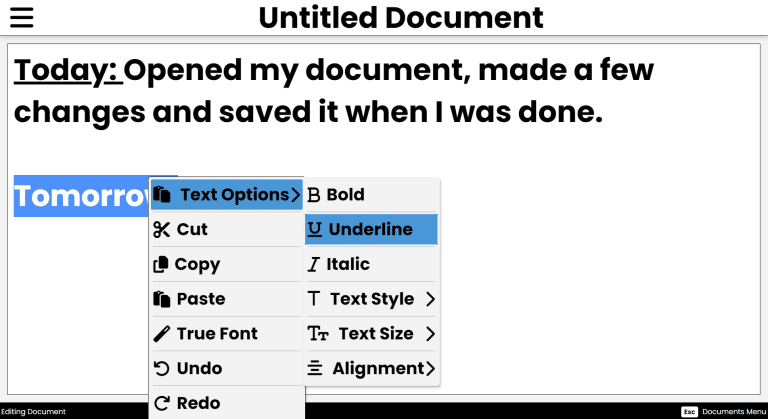
Once you create or open a document, you'll be in the Document Editor. The footer shows "Editing Document" and reminds you that pressing Escape opens the Documents Menu.
Context Menu
Open the Context Menu by right-clicking, pressing the Context Menu key on your keyboard, or pressing Shift + F10. All of these options are also available by pressing Escape and navigating the Documents Menu.
- Bold: Toggle bold formatting on/off.
- Underline: Toggle underline formatting on/off.
- Italic: Toggle italic formatting on/off.
- Text Options:
- Text Style: Choose from Arial, Calibri, Roboto, Times New Roman or Arial Black.
- Text Size: Choose from 12pt, 24pt, 32pt, 48pt or 72pt.
- Alignment: Set text alignment to Left, Center or Right.
- Cut: Cut selected text.
- Copy: Copy selected text.
- Paste: Paste text from clipboard.
- True Font: Toggle True Font mode.
- Undo: Undo the last action.
- Redo: Redo the last undone action.
Document Menu (Press Escape)
Press Escape while editing to open the Document Menu:
- Save: Save the current document.
- Save As: Save the document in a different format.
- Save as .rtf
- Save as .txt
- Save as .docx
- Save as .pdf
- Print: Print the document using one of your available printers.
- Magic Edit: Automatically clean up your document. See Tips & Tricks for details.
- Text Options: Change font style and size.
- Text Style: Choose from Arial, Calibri, Roboto, Times New Roman or Arial Black.
- Text Size: Choose from 12pt, 24pt, 32pt, 48pt or 72pt.
- Info: View document statistics including:
- Characters
- Words
- Lines
- File Name
- Type
- Return to Document: Go back to editing your document.
- Exit Without Saving: Close the document without saving changes.
Tips & Tricks
- Magic Edit: Magic Edit performs a simple spellcheck, removes extra spaces and line breaks, and normalizes all text to be the same size and style. You can customize Magic Edit from Main Menu > Settings > App Settings > Documents.
- Quick Save: Use Ctrl + S to quickly save your document without opening the Documents Menu.
- Change Font Size Fast: Use Ctrl + Shift + > to increase text size or Ctrl + Shift + < to decrease text size.
Frequently Asked Questions
- What file formats can I save my document as?
- You can save documents as RTF, TXT, DOCX or PDF files using the Save As option.
- How do I change the font style?
- Right-click in the document and select Text Options > Text Style, or press Ctrl + D to open Text Options.
- Can I print my document?
- Yes, press Escape to open the Documents Menu, then select Print and choose your printer.
- What does Magic Edit do?
- Magic Edit performs a spellcheck, removes extra spaces and line breaks, and normalizes text formatting. You can customize its behavior in Settings > App Settings > Documents.