
Introducing the Low Vision Readability Tool
The Low Vision Readability Tool is a free browser-based tool that helps teachers, TVIs, and other educators assess how students read and interact with text on real devices.
Because visual access can vary from one student to another, the tool makes it easier to compare font size, font style, readability, and overall presentation in a practical setting. As a result, educators can make more informed decisions during instruction, observation, and assessment.
What the Low Vision Readability Tool Includes
The Low Vision Readability Tool includes five simple modes for exploring different aspects of readability. Together, these modes make it easier to compare fonts and sizes, check reading fluency, evaluate symbol or letter recognition, and identify what works best for each student.
For example, some modes focus on continuous reading, while others support quick comparison or recognition tasks. In addition, each mode is designed to be easy to launch and easy to repeat during real classroom or assessment use.

Read
Read mode displays passages by level, font, and size so you can see what supports the most comfortable reading experience.
- Choose from multiple reading levels and passage types.
- Use the built-in timer for simple fluency checks.
- Generate new passages to reduce the effect of memorization.

Size
With Size mode, you can compare the same text across a range of text sizes to quickly identify what is easiest to read.
- See multiple sizes at once for side-by-side comparison.
- Select the clearest options for closer review.
- Focus on the sizes that work best for the student.
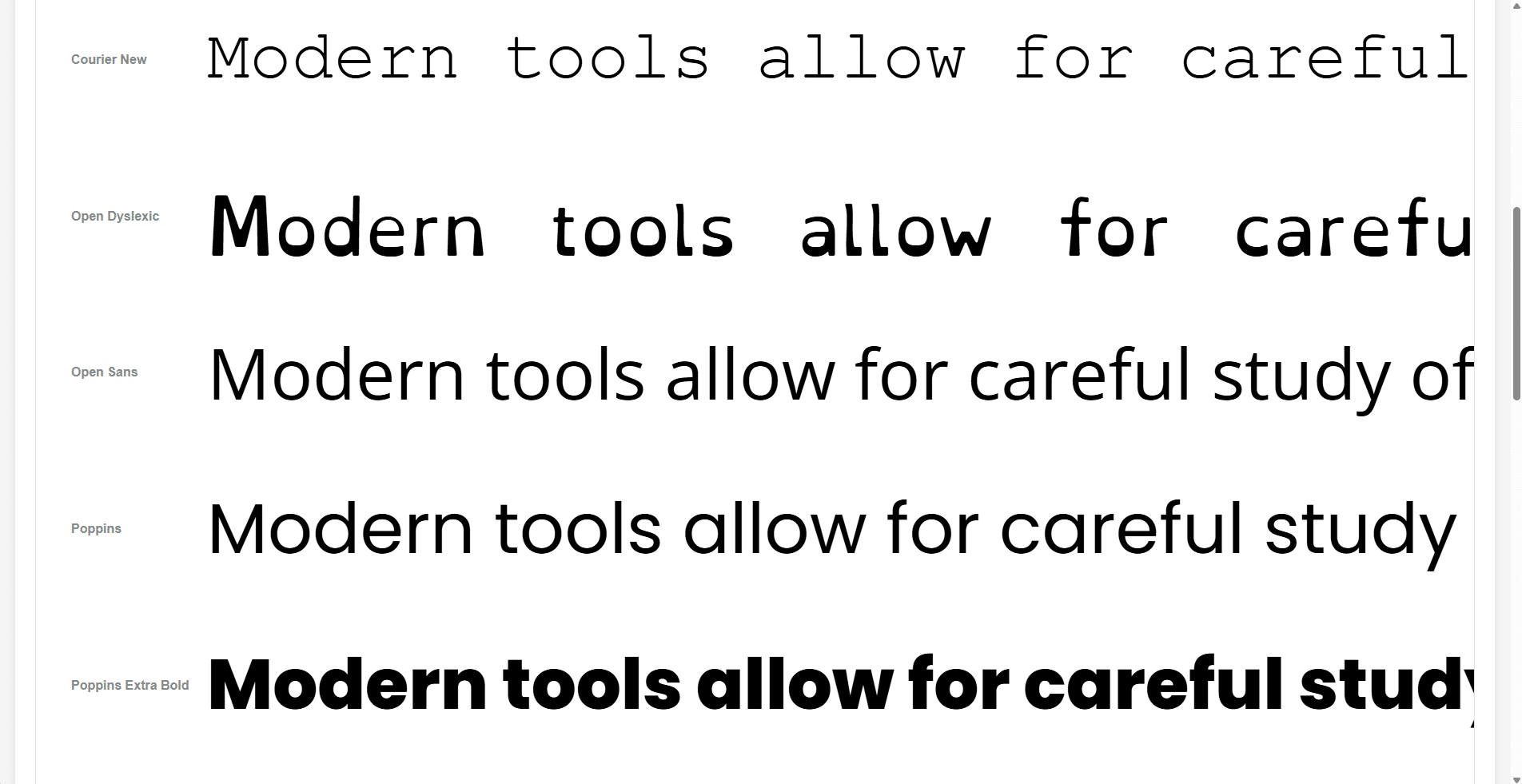
Style
Style mode shows the same text in different fonts, allowing you to compare readability across typefaces without changing the content.
- Test common fonts alongside accessibility-focused options.
- See which letterforms are easiest to recognize.
- Compare style preferences more directly.

Chart
Chart mode provides customizable letters, numbers, shapes, or symbols for quick recognition checks.
- Display items at multiple sizes.
- Randomize content for repeated use.
- Support focused comparison of lines or symbol groups.

Grid
Grid mode presents an interactive field of symbols and helps track how accurately a student identifies targets.
- Measure recognition and accuracy in a more active format.
- Use letters, numbers, shapes, or directional symbols.
- Explore how size and presentation affect performance.
Why the Low Vision Readability Tool Helps
The Low Vision Readability Tool gives teachers and TVIs a practical way to compare text presentation on real devices. Whether you are supporting classroom reading, completing an assessment, or exploring visual access options, it offers a flexible place to start.
Free and Easy to Use
It is completely free to use, requires no account, and stores preferences locally in the browser. In addition, it can be installed as a web app for quick access on supported devices.
Try It Today
Whether you are supporting a classroom, completing an assessment, or exploring what helps a student read more comfortably, the Low Vision Readability Tool offers a quick and flexible place to start.