

Introducing Reading Check
Reading Check is a free browser-based tool that gives teachers, TVIs, assistive technology professionals, and other educators a quick way to explore how comfortably a student reads and works with text.
Text size is only part of the picture. Font style, spacing, presentation, device, and the type of reading task can all affect how comfortable and efficient reading feels.
Reading Check brings those variables together in one place. Compare different sizes and styles, try reading passages, use recognition activities, and see how the student responds on the device they actually use.
No account or download is required. Open Reading Check in a browser and start comparing.
What Reading Check Includes
Reading Check includes five simple modes for exploring different parts of the reading experience. Together, they make it easier to compare text presentation, look at reading fluency, explore recognition, and identify settings worth carrying into everyday use.
Use one mode for a quick comparison or move between several during a longer teaching or assessment session.

Read
Read mode provides passages that can be adjusted by level, font, and size so you can explore what supports comfortable reading.
- Choose from multiple reading levels and passage types.
- Use the built-in timer for simple fluency checks.
- Generate new passages to reduce the effect of memorization.

Size
Size mode shows the same text at several sizes at once, making it easy to compare which options are most comfortable to read.
- Compare multiple text sizes side by side.
- Select the clearest options for closer review.
- Narrow the choices to a practical range for the student.
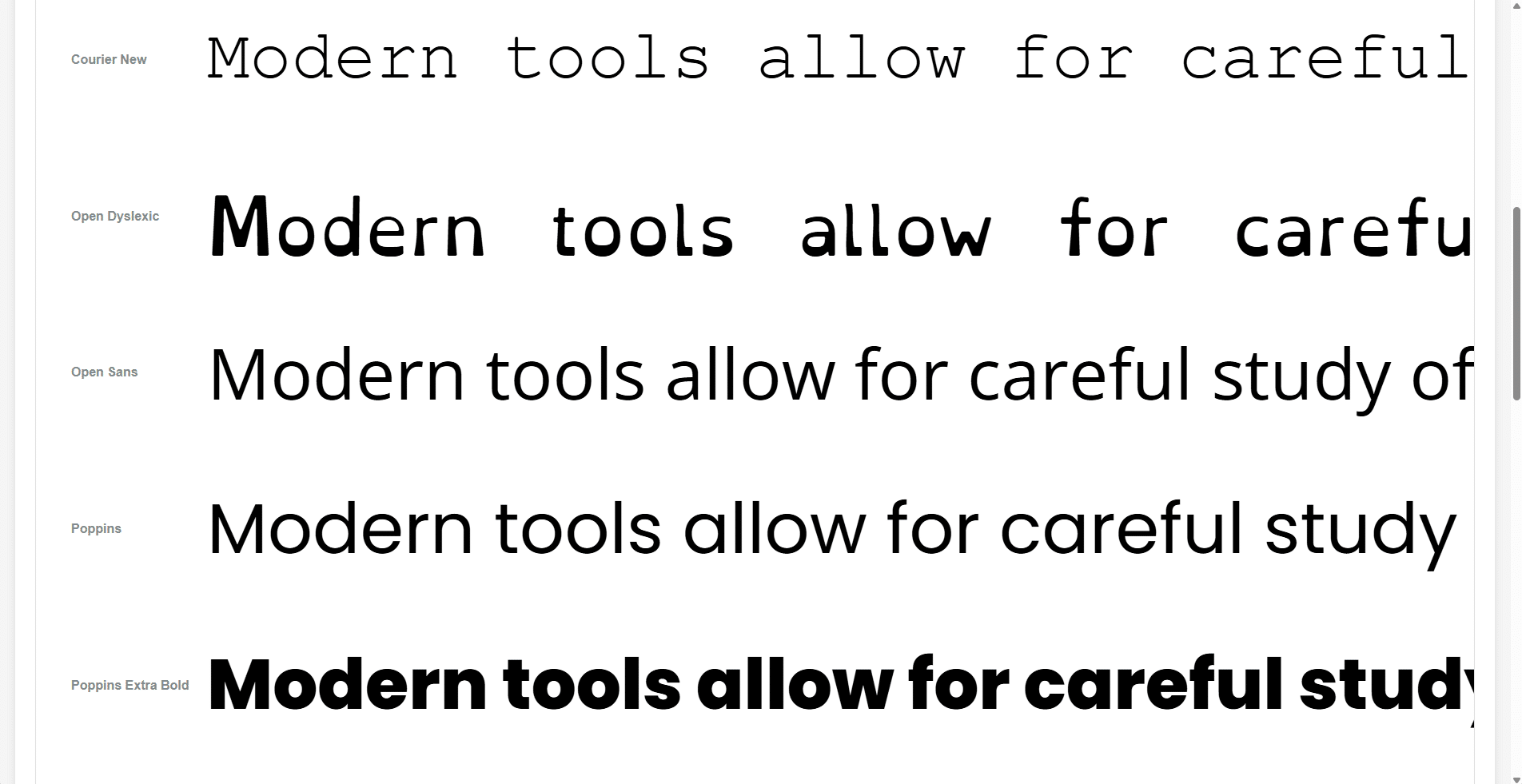
Style
Style mode presents the same text in different fonts so the student can compare letterforms without the content changing.
- Try common fonts alongside accessibility-focused options.
- Compare which letterforms are easiest to recognize.
- Identify font preferences for longer reading tasks.

Chart
Chart mode provides customizable letters, numbers, shapes, and symbols for focused recognition checks.
- Display items at multiple sizes.
- Randomize content for repeated use.
- Compare recognition across different lines or symbol groups.

Grid
Grid mode provides a more active recognition task by asking the student to locate and identify targets within a field.
- Explore recognition and accuracy in an interactive format.
- Use letters, numbers, shapes, or directional symbols.
- See how size and presentation affect performance.
Compare More Than Text Size
Making text larger can help, but it does not answer every reading question. A different font, presentation, or amount of text on the screen may make just as much difference for an individual student.
Reading Check makes it easy to change one variable at a time and compare the result with the student.
Use the Device the Student Actually Reads On
Reading Check runs in the browser, so you can use it directly on a student's laptop, tablet, phone, display, or other supported device.
That helps you explore reading under conditions that are closer to everyday use instead of relying only on printed examples or a separate assessment device.
Move From Comparison to Real Reading
A setting that looks good in a sample line of text may feel different across an entire paragraph. Reading Check lets you move between quick comparisons, recognition activities, and continuous reading so you can look at the experience from several angles.
Use what you observe alongside the student's own feedback to identify settings that are worth trying in everyday reading tasks.
Free and Easy to Use
Reading Check is completely free, browser-based, and requires no account or download. Preferences are stored locally in the browser, making it easy to return to settings on the same device.
You can also bookmark or install Reading Check as a web app for quick access during future sessions.
Try Reading Check
Whether you are comparing text sizes, exploring fonts, checking reading fluency, or looking more closely at recognition, Reading Check gives you a quick place to see what helps a student read comfortably and effectively.
